V380 Pro WiFi alarm controls include arming, alarm notifications, alarm screenshots, alert tones, and—on compatible camera models—433 MHz accessory linkage. Available menus and options may vary by camera and app version.
[reference] Title: Arming Text: Enables the camera's configured alarm monitoring functions. Title: Disarming Text: Turns off the active alarm monitoring state. Title: Alarm Alert Text: Controls the alarm tone on compatible camera models. Title: Alarm Screenshot Text: An alarm event may create an image that can be viewed from the app. Title: 433 Linkage Text: Some camera variants can work with compatible external alarm accessories using the 433 protocol. [/reference]Turn Alarm Monitoring On or Off
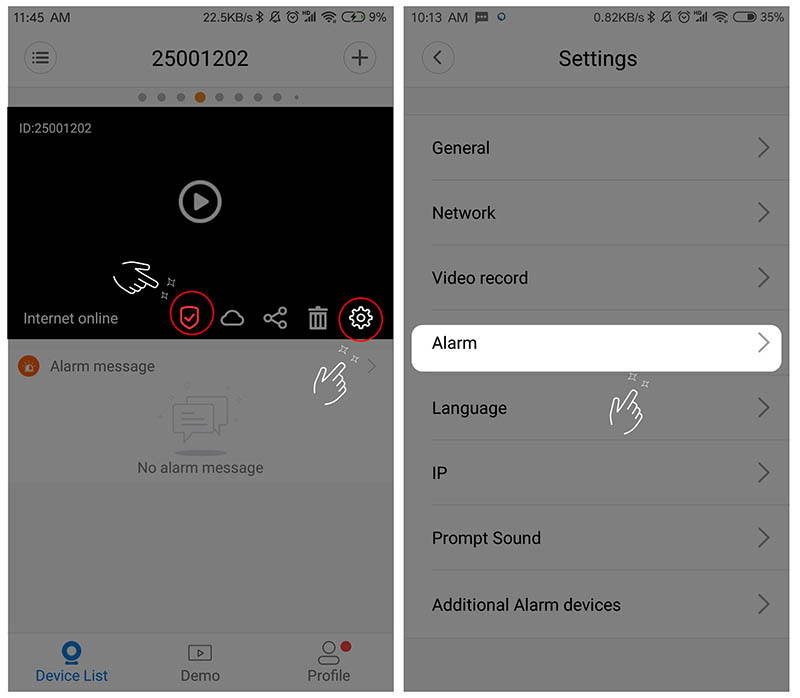
After the camera is connected and available in the V380 app, alarm monitoring can be controlled in either of these ways:
[step] 1. From the device list or playback screen, use the Arming/Disarming control and select Arming when monitoring should be active. 2. Alternatively, open the device Settings and enter the Device Alarm area. 3. Use the available arming/disarming switch to enable or disable alarm monitoring. [/step] [note] Menu names and control placement may differ slightly between app or camera versions. [/note]Alarm Screenshots and Notifications
If alarm screenshots or notifications are expected, first check the basic alarm settings and connection state.
[checklist] * The camera is armed * The configured arming time is correct * The intended arming zone is selected * The camera is connected and can be viewed live * New message or alarm push is enabled in the app settings * Notification permission for the app is enabled on the phone [/checklist]If alarm screenshots are still not appearing, close the app completely and reopen it. A camera restart or an available standard firmware update may also be worth checking if those options are provided for the device.
If screenshots arrive but push alerts do not, confirm that alarm images can already be received, then check the app's message-push setting and the phone's notification permission. Reinstalling the app may be used as a final basic app-side check.
[note] Push behavior can vary between phone models and system versions. Some devices may not handle the app's push service consistently. [/note]Opening Alarm Images
An alarm image may occasionally take longer to load when the network connection changes or becomes unstable. Refresh the image and try loading it again. If it is still unavailable, try again later.
Alarm Screenshot Storage
The existing guide describes alarm screenshots as cloud-stored and not manually removable from the app. Older alarm images are cleared automatically on a periodic basis, described as roughly one week in the original guidance.
Retention behavior may vary with service or app changes, so the exact storage period should not be treated as a guaranteed fixed duration.
Camera Alarm Tone
To control the camera's alarm sound, open the connected device, go to Settings and then Device Alarm, and use the Alarm Alert switch when that option is available.
Frequent Alarm Triggers
Alarm activity can increase when the camera view changes significantly. Common triggers described for V380 Pro WiFi include:
- The camera moves or the scene shifts.
- The viewing mode changes.
- Lighting changes noticeably.
- The scene contains substantial visual noise or movement.
Basic Alarm Checks
[troubleshoot] Problem: Alarm screenshots are not appearing Cause: The camera may be disarmed, the active time or zone may not match, or the camera may not have a usable connection Fix: Confirm arming, review the configured time and zone, verify live view, then reopen the app Problem: Alarm screenshots appear but push alerts do not Cause: Message push may be disabled or the app may not have notification permission Fix: Check the app's new-message push setting and the phone's notification permission Problem: An alarm image does not open Cause: A temporary network fluctuation may interrupt image loading Fix: Refresh the image and try again later if needed Problem: Alarm activity is unusually frequent Cause: Camera movement, scene shifts, mode changes, lighting changes, or heavy scene activity may trigger detection Fix: Stabilize the camera view, review the scene, and restart the device if appropriate [/troubleshoot]External 433 Alarm Accessories
Some V380 Pro WiFi-compatible camera variants include 433 functionality and may connect to external alarm accessories that support the same 433 protocol. This feature is model-dependent, so compatibility should be confirmed for the specific camera and accessory before setup.
[warning] Do not assume every V380 Pro WiFi camera supports 433 accessories. The camera and linkage device must both support the required 433 function. [/warning]Connect a Compatible 433 Accessory
[step] 1. Open the connected camera and go to Settings, then Alarm Settings. 2. Open Zone Settings to reach the linkage-device setup area. 3. Use the add control to start adding an accessory. 4. Put the compatible linkage device, such as an access-control or smoke-sensor accessory, into its configuration state and trigger its alarm signal. 5. Allow the camera to search for the linkage device. 6. When the accessory appears, open its configuration option and set the available name and alarm parameters. 7. If the linkage setup uses a camera preset position, open the camera PTZ page, set the required preset position, apply it, and save the setting. [/step]433 Setup Notes
- Only linkage devices supporting the required 433 protocol are described as compatible.
- For compatible adjustable oscillating-resistance linkage products, the original guidance specifies a 1–2K setting before configuration.
- Some compatible accessories may use a 9V rectangular battery, so check the accessory's battery requirement before setup.
AI Alarm False Positives
AI-based alarm detection may attempt to identify a human shape in the camera image, but false detections can still occur. When the app provides a false-alarm reporting option, the unwanted detection can be marked and submitted through that control.
[step] 1. Open the alarm image that was detected incorrectly. 2. Use the available false-alarm selection control near the lower-right area of the alarm view. 3. Return to the previous screen so the marked image can be submitted as a false-alarm report. [/step]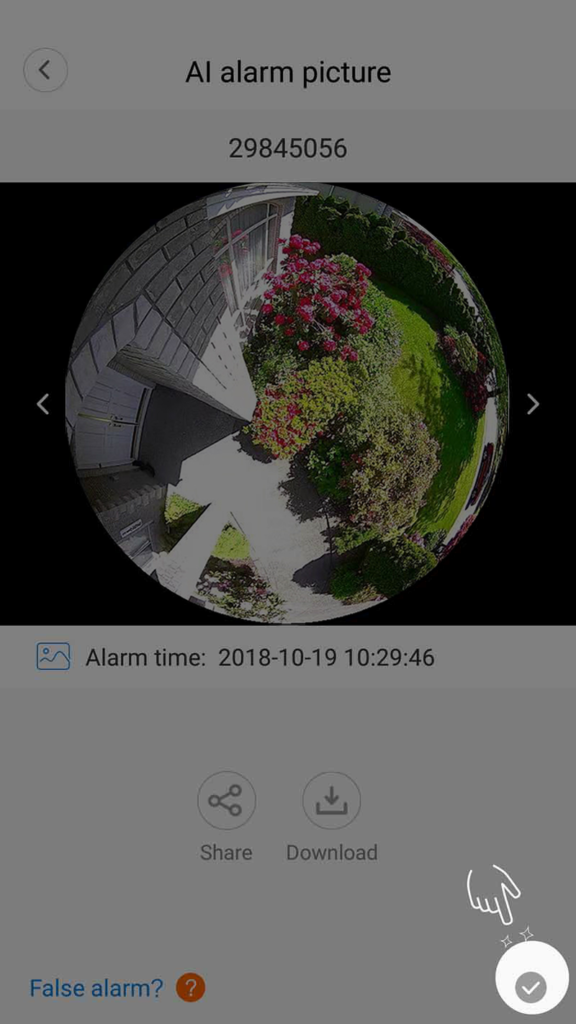 [faq]
Q: Can alarm monitoring be turned off temporarily?
A: Yes. Use the available Arming/Disarming control or the corresponding alarm setting for the connected camera.
Q: Can alarm screenshots be deleted manually?
A: The existing guidance describes them as cloud-stored and automatically cleared rather than manually deleted.
Q: Does every V380 Pro WiFi camera support external 433 alarm devices?
A: No. 433 linkage is described only for compatible camera variants and accessories.
Q: Can AI alarm detection produce false alerts?
A: Yes. Human-shape detection can occasionally classify an image incorrectly, and the app may provide a false-alarm reporting control.
[/faq]