
This V380 Pro WiFi Camera FAQ guide explains common problems and solutions for V380 Pro wireless IP cameras, including power issues, camera reset problems, AP hotspot mode, WiFi connection problems, device ID checking, voice prompt settings, hotspot password settings, factory reset instructions, and general troubleshooting.
V380 Pro cameras are used for home monitoring, shop security, outdoor surveillance, baby monitoring, pet monitoring, office monitoring, and remote viewing. Because different camera models may have different hardware designs, some functions may vary depending on whether the device is an indoor camera, outdoor camera, PTZ camera, panoramic camera, battery camera, wired camera, or dual-lens camera.
If your camera is not turning on, cannot connect to WiFi, does not show its hotspot, keeps restarting, or cannot be added to the app, use the questions below to identify the problem and apply the correct solution.
1. The Device Is Not On After Power Connection, and the Light Indicator Stays Off
If the V380 Pro camera does not turn on after connecting the power supply and the indicator light stays off, the camera may not be receiving power. This is usually caused by a faulty power adapter, damaged USB cable, loose plug, poor wall outlet, or internal hardware problem.
Possible Causes
- The power adapter is damaged.
- The power cable is broken or loose.
- The wall outlet has no electricity.
- The camera power port is damaged.
- The device has an internal power board fault.
Recommended Solutions
- Replace the power cord and power plug.
- Try a different wall outlet.
- Check whether the plug is inserted firmly into the camera.
- Use the original power adapter if available.
- If the power is still not available after replacement, the equipment may require repair.
Do not continue using a damaged cable or charger. An unstable power supply may cause repeated restarts, camera failure, or recording errors.
2. No Response After the Device Is Powered On

If the camera receives power but does not respond, does not rotate, does not make a startup sound, and does not show normal indicator light activity, the device may be stuck during startup or may have a hardware issue.
What to Try
- Replace the power cord and power plug.
- Wait for at least one minute after connecting power.
- Check whether the indicator light turns on or flashes.
- Try resetting the camera if it responds to the reset button.
- If available, try a manual firmware upgrade according to the manufacturer’s instructions.
- If the device still cannot start after the manual upgrade, the equipment may need repair.
Some cameras take longer to start after a reset or firmware update. However, if the device remains completely unresponsive, the issue is usually related to power supply or internal hardware.
3. Device Does Not Respond After “System Startup”

Some V380 Pro cameras provide a voice prompt such as “System startup” or “System is starting” when powered on. If the device does not continue after this message, it may be stuck during startup.
Recommended Solutions
- Replace the power cord and power plug.
- Restart the camera by unplugging it for 10 to 20 seconds.
- Reconnect the power and wait for full startup.
- Try restoring factory settings using the reset button.
- If the device is still not available, it may require technical service.
A weak or unstable power adapter can cause the camera to begin startup but fail before it finishes. This is why checking the power supply is the first step.
4. The Device Restarts Repeatedly

If the camera keeps restarting again and again, the most common cause is unstable power. The camera may start, lose power, restart, and repeat the same cycle.
Possible Causes
- Insufficient power adapter output.
- Damaged cable.
- Loose power connector.
- Faulty wall socket.
- Firmware issue.
- Hardware failure.
Recommended Solutions
- Replace the power cord and power plug.
- Use a power adapter with the correct voltage and current rating.
- Connect the camera directly to a wall outlet instead of a weak USB port.
- Remove the memory card temporarily and restart the camera.
- If the camera still restarts repeatedly, technical repair may be required.
If the restart problem only happens after inserting a memory card, format the card or try a different card. A faulty memory card can sometimes cause system instability.
5. Must the Camera Be Connected to the Power Supply?

V380 Pro cameras are divided into models with built-in batteries and models without batteries. Cameras without batteries can only be used after being connected to a power supply.
If your camera does not have a built-in battery, it must remain plugged in at all times. If the power is disconnected, the camera will turn off immediately and remote viewing will stop.
Battery vs. Non-Battery Models
- Battery models: Can work temporarily without being plugged in, depending on battery charge.
- Non-battery models: Must stay connected to power continuously.
- Outdoor wired models: Usually require constant power.
- PTZ cameras: Usually require constant power because motor movement consumes more energy.
For long-term monitoring, even battery models should be charged regularly or connected to a stable power source if supported.
6. Can the Camera Volume Be Adjusted Up or Down?
The volume of the camera system voice prompt is fixed on many V380 Pro models. It does not support volume level adjustment.
This means you may not be able to make the startup voice, reset voice, or WiFi connection voice louder or quieter. However, some models allow the voice prompt to be turned on or off completely from the app settings.
If the camera supports voice prompt settings, you can disable the system voice prompt in the app. If the setting does not appear in your app, your camera model may not support this function.
7. How Does the Camera Establish AP Hotspot Mode?
AP hotspot mode allows the camera to create its own WiFi signal. Your phone can connect directly to this camera hotspot without using a router. This mode is useful for initial setup, local viewing, troubleshooting, or configuring the camera before connecting it to a WiFi network.
The hotspot name usually begins with MV. If your phone can find a WiFi signal beginning with MV, it means the camera hotspot has been created successfully.
1. Devices Whose Default Connection Mode Is AP Hotspot Mode
For devices whose default connection mode is AP hotspot mode, long press the camera reset button. After the device restores factory default settings, it will enter AP hotspot mode automatically.
This applies no matter what state the device is in, except when a network cable is connected.
Devices with speakers may provide the following voice prompts:
- “Restore factory default setting”
- “Access-Point preparing”
- “Access-Point ready”
After the camera says “Access-Point ready”, open your phone WiFi list and look for a hotspot signal beginning with MV.
2. Devices Whose Default Connection Mode Is Station Mode
For devices whose default connection mode is station mode, long press the reset button to restore factory default settings. After reset, the camera will enter WiFi Smart Link configuration mode instead of AP mode.
Devices with speakers may provide the following voice prompt:
- “Restore factory default setting”
- “Waiting for WiFi smartlink configuration”
To switch from WiFi Smart Link configuration mode to AP hotspot mode, short press the reset button again. The camera voice prompt should then say:
- “Access-Point preparing”
- “Access-Point ready”
If the phone WiFi list can search for a hotspot signal beginning with MV, the hotspot has been established successfully.
Note: When the camera is connected to a network cable, the wireless connection mode will be blocked. At this time, restoring factory default settings will not change the network connection status of the device.
8. How to Turn On or Turn Off the System Voice Prompts
Some V380 Pro cameras allow the system voice prompts to be enabled or disabled in the app. Voice prompts include startup messages, reset messages, WiFi configuration messages, and connection status messages.
Steps to Turn Voice Prompts On or Off
- Connect the camera to the phone app.
- Open the device list.
- Tap the [Settings] icon for the camera.
- Go to [Advanced setting].
- Select [Device voice prompt].
- Choose to turn the camera system voice prompts on or off.
- Return to the previous page after completing the settings.
The change should take effect after returning to the previous layer.
Note: Only devices that support this function will show this option in the settings list. If your camera does not support voice prompt control, the option will not appear.
9. How to Set AP Hotspot Password
Setting a password for the AP hotspot helps prevent other people nearby from connecting directly to your camera hotspot. This is recommended if you use AP mode often or if the camera is installed in a place where other phones may detect the hotspot.
Steps to Set the AP Hotspot Password
- Connect the camera to the phone app.
- In the device list, tap the [Settings] icon.
- Go to [Network].
- Select [AP hotspot mode].
- Find the hotspot name and password field.
- Fill in the password under the hotspot name.
- Tap [Save].
- After the setting is completed, reconnect your phone to the camera hotspot.
- The new password will be required to connect to the hotspot again.
Hotspot Password Rules
- The password must contain at least 8 characters.
- The password can include letters, numbers, or symbols.
- Use a password that is difficult for others to guess.
- Do not use simple passwords such as 12345678 or 00000000.
Note: Restoring the camera to factory default settings can delete the hotspot password.
10. How Far Is the AP Hotspot Mode Connection Range?
The AP hotspot connection range depends on the camera model, phone model, wall thickness, interference, and installation environment.
Reference Connection Distance
- The stable connection distance of an indoor camera is usually 5 to 10 meters.
- The stable connection distance of an outdoor camera is usually 10 to 20 meters.
Important Notes About Hotspot Range
- The above distances are reference values only. The actual connection effect depends on the environment.
- Walls and partitions can greatly weaken the signal.
- The camera can connect over a longer distance in an open environment.
- Do not use the device in an environment with high electromagnetic interference.
- Metal objects, electrical equipment, and thick concrete walls may reduce signal strength.
If the AP hotspot connection is unstable, move the phone closer to the camera.
11. The Phone Cannot Find or Connect to the AP Hotspot
If your phone cannot find the camera hotspot, the camera may not be in AP hotspot mode, the device may not have started correctly, or the phone may not have the required permissions.
Recommended Solutions
- Make sure that the device has started normally and is in AP hotspot mode.
- For devices with external antennas, confirm that the antennas have been connected properly.
- Confirm that the device is not connected to a network cable. If a network cable is connected, disconnect it first.
- If a security prompt appears during hotspot connection on an Android phone, confirm and allow the system to connect to the hotspot.
- For Apple mobile phones using iOS 14 or above, confirm that the app has [Local Network] and [Precise Location] permissions enabled.
- Restart the device and try connecting again.
- Try connecting with another phone.
- If the problem cannot be solved after trying the above methods, the device may require technical support.
Note: AP hotspot is a signal from the camera and cannot connect to the internet. Therefore, it is normal for the phone system to show messages such as “Network unavailable”, “No internet connection”, or “Connected without internet” while connected to the camera hotspot.
12. How to Check the Device ID
The device ID is the unique identification number of the camera. Each camera corresponds to only one ID. This ID is used when adding the device to the V380 Pro app manually or when sharing the device with another phone.
Where to Find the Device ID
- The ID number is usually 8 digits.
- It can be viewed on the label on the device body.
- It may be printed on the bottom, back, base, or side of the camera.
- If the device is already connected in the app, you can view the ID in the upper-left corner of the device list window.
When entering the device ID manually, type it carefully. Do not confuse similar-looking characters. If possible, scan the QR code instead of typing the ID manually.
13. How to Enable or Disable the Shake Machine Self-Test Function
Some PTZ or rotating V380 Pro cameras perform a self-test movement when powered on. This may include rotating left, right, up, or down to check motor movement.
If you want to enable or disable the shake machine self-test function, you may need a special configuration file.
Recommended action: Contact the technician or product support team to provide the correct configuration file for your camera model.
Do not use unknown configuration files from untrusted sources, because incorrect files may cause device malfunction.
14. When Does the Equipment Self-Test?
Equipment self-test may happen when the camera starts, when firmware is updated, or when the camera checks motor movement and internal system status.
If the device cannot complete self-test, a firmware issue or motor issue may be present.
Recommended Steps
- Upgrade the firmware version if an official firmware update is available.
- Restart the device after firmware upgrade.
- If the firmware still cannot turn or the device cannot complete self-test after the upgrade, contact technical support.
15. How to Change the System Tone Language
Some V380 Pro cameras support changing the system voice prompt language. Depending on the camera, you may be able to choose Mandarin, English, or another supported language.
Method 1: Change Language in the App
- Connect the camera to your phone.
- Open the app.
- Go to the lower-right corner of the app.
- Tap the [Settings] icon.
- Select [Device Language].
- Choose Mandarin or English.
Method 2: Modify the Device Configuration File
If the app does not provide the language option, the device language may need to be changed using a configuration file.
Please contact technical personnel for the correct file.
Note: The default network mode of the device in English voice mode is usually hotspot mode.
16. Long Pressing the Reset Button Does Not Activate Anything
If long pressing the reset button does not reset the camera or trigger any voice prompt, the reset button may not be pressed correctly, the firmware may be abnormal, or the button may be damaged.
Recommended Solutions
- Make sure the button is pressed down fully.
- If the reset button is inside a small hole, use a thin pin or reset tool and press carefully.
- Hold the button long enough, usually around 6 to 7 seconds.
- Check whether the camera is powered on before resetting.
- Upgrade the firmware of the device if possible.
- If the restore button still does not work, the reset button may be damaged.
If the button is physically damaged, software troubleshooting may not fix the issue.
17. How to Modify the Default Network Mode
Some V380 Pro cameras can start in different default network modes, such as AP hotspot mode or WiFi Smart Link station mode.
To modify the default network mode, a special configuration file may be required.
Recommended action: Contact the technician or official support team to provide the correct configuration file.
Do not apply configuration files that do not match your exact camera model.
18. How to Restore Factory Settings
Restoring factory settings clears the camera’s current configuration and returns it to its default state. This is useful when the camera cannot connect to WiFi, the device password is forgotten, the hotspot password is unknown, or the camera needs to be set up again from the beginning.
To restore factory settings, long press the reset button for about 6 to 7 seconds. Devices with loudspeakers may announce “Restore factory settings” or “Restore factory default setting”.
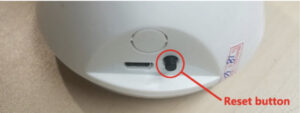
Method 1: Reset Button on Head-Shaking Devices
Some head-shaking PTZ devices have a visible button next to the English mark “RESET”.
Press and hold this reset button for several seconds until the device restores factory settings.
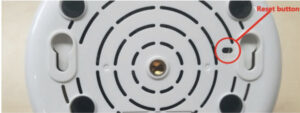
Method 2: Reset Hole on Head-Shaking and Panoramic Cameras
Some head-shaking and panoramic cameras have a small hole on the body with the English mark “RESET” beside it.
Use a pin, SIM eject tool, or similar thin object to press and hold the reset button inside the hole for several seconds.
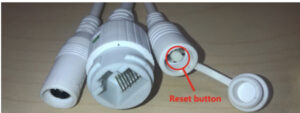
Method 3: Reset Button on Outdoor Devices and Large Triangle Panoramic Cameras
Some outdoor devices and large triangle panoramic devices have several wires. One of the wires may be capped. Remove the cover and long press the button inside to reset the camera.
Note: Restoring factory settings will clear the configuration information and the device password. After reset, you need to reconfigure the network and set the password again.
19. What Does Factory Reset Clear?
Restoring factory default settings clears many saved settings from the camera. After reset, the camera must be configured again.
Factory Reset Will Clear or Change the Following
- WiFi information and IP configuration information
The saved router WiFi name, WiFi password, and network information will be cleared. - User information
The username and password information will be cleared. - Hotspot password
Any AP hotspot password you set will be removed. - System voice prompt
The system voice prompt will be turned on. - Cloud service binding
The device may become unbound from cloud service. - Alarm function
- The arming state is set to off.
- The alarm area is set to all.
- The alarm time period is set to all-day alarm.
- The alarm tone is turned off.
- PTZ function
- The PTZ power-off memory position is cleared.
- The PTZ patrol setting is cleared.
- The movement tracking function is turned off.
- Light control function
- The light control is set to Auto.
- The timing switch light setting is cleared.
- Image attribute
The image attribute is set to Auto.
Note: After the device is restored to factory default settings, the network needs to be reconfigured.
20. When Should You Restore Factory Settings?
Factory reset should be used when normal troubleshooting does not solve the issue. It is helpful, but it also clears saved settings, so use it when necessary.
Factory Reset Is Recommended If
- The camera cannot connect to WiFi.
- The camera was connected to another router before.
- You changed your WiFi name or password.
- The app cannot add the device.
- The device password is forgotten.
- The AP hotspot password is forgotten.
- The camera shows offline after multiple attempts.
- You want to set up the camera from the beginning.
21. Why Does the Phone Say the Camera Hotspot Has No Internet?
This is normal. The camera AP hotspot is created by the camera itself. It is used for direct connection between your phone and the camera. It does not provide internet access.
When your phone connects to the camera hotspot, the phone may show a message such as:
- No internet connection
- Network unavailable
- Connected without internet
- This WiFi has no internet access
These messages do not always mean there is a problem. Stay connected to the camera hotspot if the setup instructions require it.
22. Why Is the Camera Offline in the App?
A camera may show offline in the V380 Pro app for several reasons.
Common Reasons
- The camera is not powered on.
- The WiFi signal is weak.
- The router is offline.
- The camera is too far from the router.
- The WiFi password was changed.
- The camera was reset but not reconfigured.
- The app needs to be refreshed.
- The internet connection is unstable.
What to Do
- Check that the camera is powered on.
- Restart the camera.
- Restart the router.
- Move the camera closer to the router.
- Refresh the device list in the app.
- If WiFi settings changed, reset the camera and configure it again.
23. Why Can’t the Camera Connect After Reset?
After reset, the camera loses its saved WiFi settings. You must reconnect it to WiFi using the app.
Make sure the camera is in the correct connection mode. Some cameras enter AP hotspot mode after reset, while others enter WiFi Smart Link configuration mode. Listen to the voice prompt or check the indicator light to understand the current mode.
Also make sure the WiFi network is 2.4GHz and the password is correct.
24. General V380 Pro Troubleshooting Checklist
If you are not sure what the problem is, use this checklist:
- Check the power adapter and cable.
- Confirm the camera has started normally.
- Check the indicator light status.
- Listen for voice prompts if the camera has a speaker.
- Make sure the camera is not connected to a network cable when using wireless mode.
- Confirm that the phone has the required app permissions.
- Check whether the camera is in AP hotspot mode or Smart Link mode.
- Move the phone close to the camera for hotspot setup.
- Move the camera close to the router for WiFi setup.
- Use 2.4GHz WiFi if the camera does not support 5GHz.
- Reset the camera if setup fails repeatedly.
- Reconfigure the network after factory reset.
25. Security Recommendations
After setting up your V380 Pro WiFi camera, secure the device to protect your privacy.
- Change the default password immediately.
- Set a strong AP hotspot password if using hotspot mode.
- Do not share the device ID publicly.
- Only share camera access with trusted people.
- Use a secure WiFi password on your router.
- Keep the app updated.
- Remove old or unused devices from the app.
- Do not install the camera in private spaces where recording is not allowed.
26. Privacy Notice
Use the V380 Pro WiFi camera responsibly and legally. Do not install or use cameras in places where people expect privacy, such as bathrooms, changing rooms, bedrooms without consent, hotel rooms, or private areas.
If the camera is used in a home, office, rental property, store, or shared area, make sure you follow local privacy and recording laws. Inform people when required.
27. Quick FAQ Summary
- No power: Replace the power cord and power plug.
- No response: Check power, restart, reset, or repair if needed.
- Repeated restart: Use a stable power supply and check the memory card.
- Must stay plugged in: Non-battery models require constant power.
- Volume adjustment: Camera volume is fixed on many models.
- AP hotspot mode: Reset the camera or switch mode using the reset button.
- Hotspot not found: Check AP mode, antennas, cable connection, permissions, and distance.
- Device ID: Check the label on the camera body or view it in the app.
- Reset not working: Press correctly, hold long enough, or check for button damage.
- Factory reset: Clears WiFi, password, hotspot password, alarm settings, PTZ settings, and more.
Conclusion
Most V380 Pro WiFi camera problems can be solved by checking the power supply, confirming the correct connection mode, resetting the camera, verifying app permissions, and reconnecting the device to the network. If the camera has no power, keeps restarting, or does not respond after trying a new power adapter and cable, the device may need repair.
For AP hotspot mode problems, make sure the camera is actually in hotspot mode and that the phone is close enough to receive the signal. For WiFi connection problems, make sure the camera is near the router, the WiFi password is correct, and the network is compatible.
Factory reset is a useful final troubleshooting step, but it clears saved configuration information. After restoring factory settings, you must reconfigure the network, set the password again, and adjust alarm, PTZ, light, and image settings if needed.