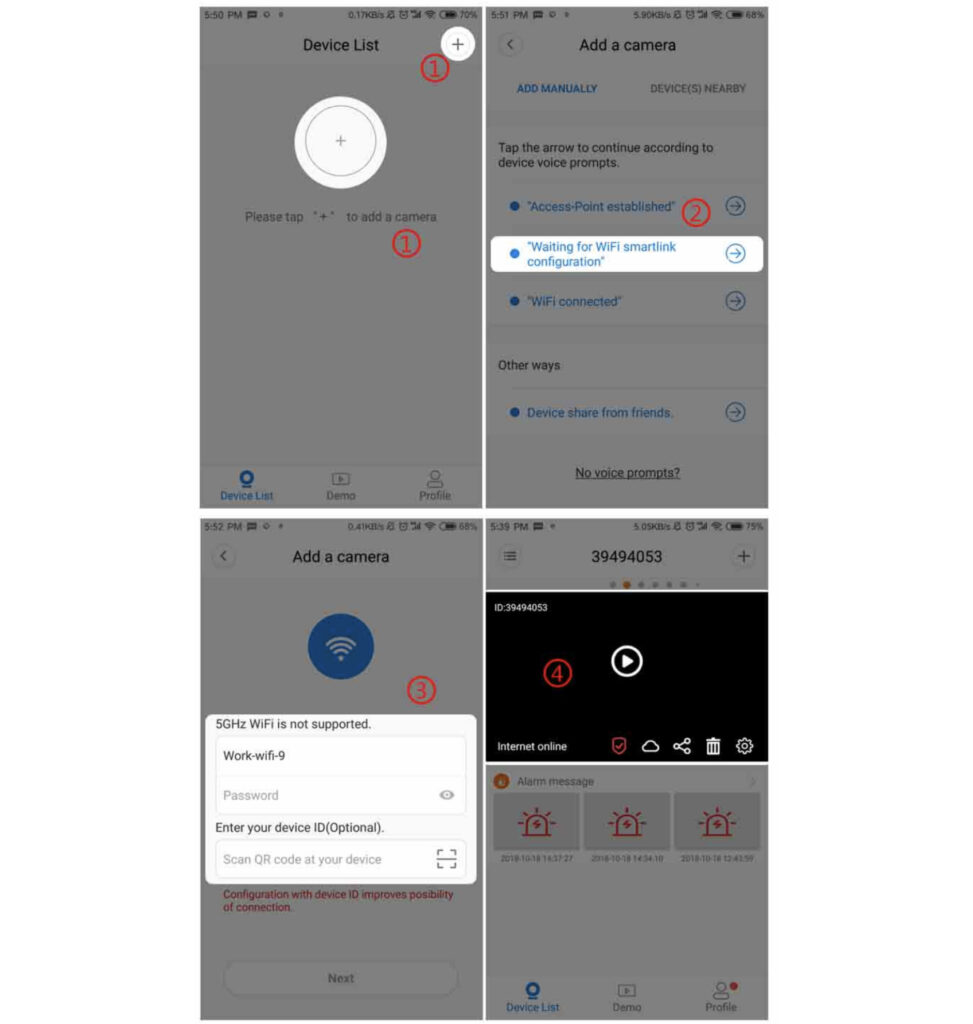
WiFi Smart Link is one of the easiest ways to connect your V380 Pro camera to a wireless router. This method allows the camera to receive your WiFi network information directly from the V380 Pro app on your phone. Once the setup is completed successfully, the camera will connect to the router, appear in the app’s device list, and become ready for live viewing and remote management.
Before starting the setup process, make sure the camera is powered on and in pairing or waiting-for-connection mode. It is also important to confirm that your phone is already connected to the same WiFi network that you want the camera to use. In most cases, the WiFi network should be a stable 2.4GHz network, because many smart cameras do not support 5GHz WiFi during the initial setup process.
Steps to Connect the Camera with WiFi Smart Link
1. Open the V380 Pro app on your phone and go to the main device list screen.
2. Tap the [+] icon in the upper-right corner to add a new device.
3. Select the option [Please use Wi-Fi Smart to connect].
4. Enter the correct password for your WiFi router when prompted.
5. If needed, scan the device ID to add it more quickly. This step is optional, but it can help reduce manual entry errors.
6. Tap [Next] to continue.
7. Wait while the app sends the WiFi connection information to the camera.
8. Once the connection is successful, the camera will give a voice prompt saying “WiFi connected”.
9. After the connection is completed, the device will appear in the device list inside the app.
10. Tap the device name or preview window to open the live image and begin using the camera.
What Happens During Smart Link Setup
During the Smart Link process, the phone and app temporarily help transfer the router’s wireless credentials to the camera. The camera then uses that information to join the WiFi network automatically. If the process is completed correctly, the camera will register itself in the app and become visible in your account’s device list. This makes setup faster and more convenient than manually entering all device information.
Preparation Before You Begin
To improve the success rate of the connection, check the following before starting:
• Make sure the camera is connected to power and has fully started up.
• Confirm that the camera is in setup mode or waiting for network configuration.
• Verify that your phone is connected to the WiFi network you want the camera to use.
• Double-check that the WiFi password is correct before tapping Next.
• Stay close to the camera and router during setup for a more stable signal.
• Use a 2.4GHz WiFi network if your router provides both 2.4GHz and 5GHz bands.
How to Know the Connection Was Successful
The setup is usually considered successful when all of the following happen:
• The camera announces “WiFi connected” through its speaker.
• The device appears in the V380 Pro device list.
• You can tap the device and successfully load the live camera image.
• The camera remains online after a short waiting period.
Troubleshooting Tips
If the camera does not connect successfully, try these solutions:
• Re-enter the WiFi password carefully, paying attention to uppercase letters, lowercase letters, spaces, and symbols.
• Restart the camera and repeat the Smart Link process from the beginning.
• Move the camera closer to the router during the initial connection.
• Make sure your router is broadcasting a supported WiFi network.
• Confirm that your internet connection is active and stable.
• If the device does not appear in the list, refresh the app or try adding the device again.
• If scanning the device ID does not work, continue with the setup and try manual entry if necessary.
After the Camera Is Connected
After the camera has been added successfully, you can open it from the device list to view the live feed, adjust image settings, configure recording options, and manage alerts or security settings. If the device is new, it is a good idea to set or update the device password as soon as possible to protect your camera from unauthorized access.
Important Notes
Some cameras may take a little time to appear online after the WiFi connection is completed. Be patient for a short moment after hearing the voice confirmation. If your router has advanced filtering, AP isolation, or device blocking features enabled, these settings may interfere with setup and device discovery.
If you continue to experience problems, resetting the camera and repeating the Smart Link setup often resolves common configuration issues.