V380 Pro WiFi provides cloud service packages through the camera's cloud section. Use the package list shown in the app to compare the available service period, recording retention, price, and other package details before subscribing.
[note] Package names, prices, available periods, and purchase options may differ depending on the current app, account, device, or region. Check the details shown on the package screen before confirming an order. [/note]Package details to compare
[reference] Title: Recording Retention Text: Check how long cloud recordings are kept under the selected package. Title: Service Period Text: Check how long the package remains available before it expires or requires renewal. Title: Device Coverage Text: Review which camera or cameras the package can be used with before confirming the purchase. Title: Package Price Text: Use the current amount displayed in the app because package pricing can change. [/reference] [compare] Shorter Retention | Keeps recordings available for a shorter period when this option is offered. Longer Retention | Keeps recordings available for a longer period when this option is offered. Shorter Service Period | Useful when you prefer a shorter subscription period and the option is available. Longer Service Period | Provides service for a longer period when this option is available. [/compare]Before choosing a package
[checklist] * Select the V380 Pro WiFi camera you want to use with the cloud service * Make sure you are signed in if the app requests an account * Review the package name and service period * Check the recording retention period * Check the displayed price and payment details * Review any device coverage or renewal information shown on the package screen [/checklist]Buy a package
[step] 1. Open the V380 Pro WiFi camera in the app. 2. Tap the cloud icon to open the cloud service area. 3. Tap “Buy a new package”. 4. Review the packages currently available for the camera. 5. Select the package that matches the retention period and service period you want. 6. Tap “Subscribe”. 7. Complete any confirmation or payment steps displayed in the app. 8. Return to the cloud package screen and check the package status. [/step]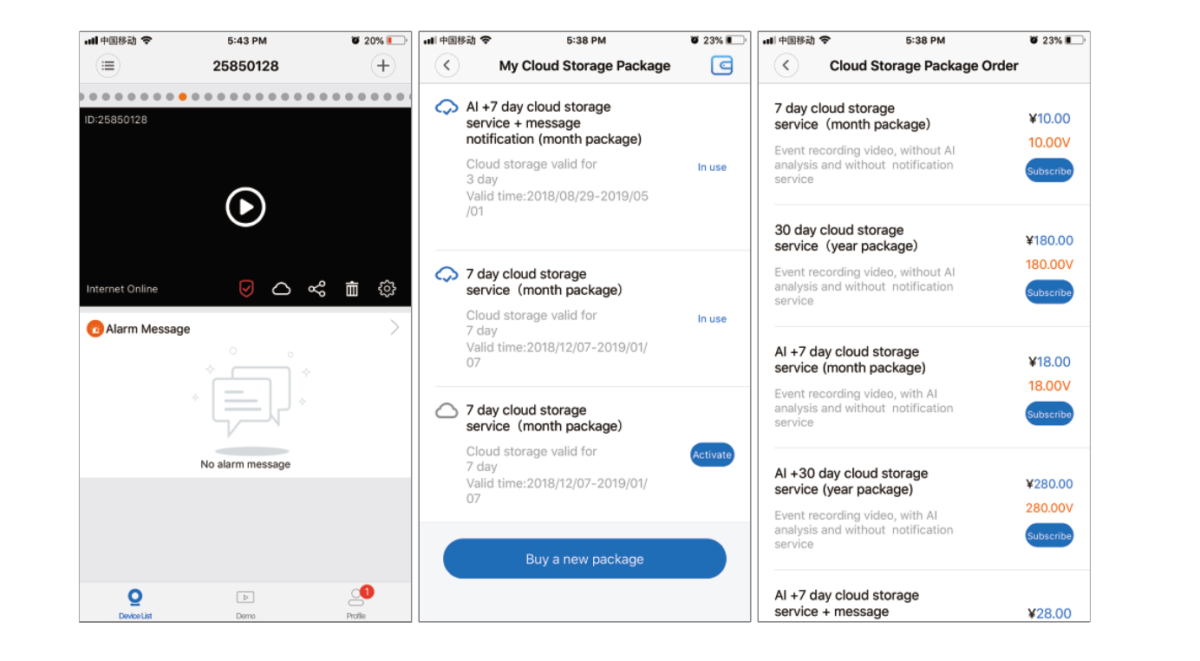 [tip]
Compare the package details on the final confirmation screen instead of choosing only by package name. This helps you verify the service period, recording retention, and current price before subscribing.
[/tip]
After ordering
The purchased package should appear in the cloud service area for the selected camera. Depending on the app screen and package state, an additional activation control may be shown before the service becomes active.
[checklist] * Confirm the purchased package appears in the cloud service area * Check the displayed package status * Use “Activate” if that option is presented for the purchased package * Confirm the package details match the service you selected [/checklist] [warning] Do not rely only on the purchase confirmation. Check the package status afterward so you know whether the service is already active or still requires an activation step. [/warning]Choosing between available packages
The best option depends on how long you want recordings to remain available and how long you want the service to run. A shorter retention period may be enough for checking recent events, while a longer retention period can provide more time to review older cloud recordings.
- Choose based on the retention period you actually need.
- Compare the total service period shown for each package.
- Check the current price before confirming.
- Review which device or devices the package covers.
- Check any renewal information displayed in the app.