Network configuration v380 pro wifi
1. Tap”+“ and then tap ”Next“.
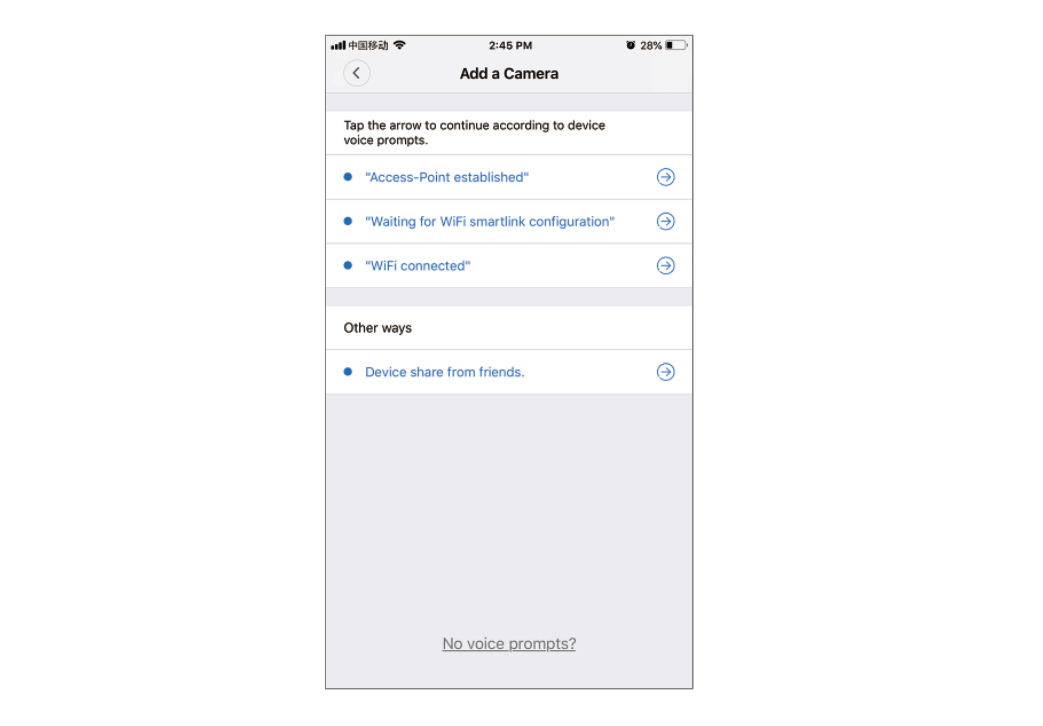
2. Wait until you hear“Access-Point established”or“Waiting for WiFi smartlink configuration”now you can start connecting the camera to Wi-Fi
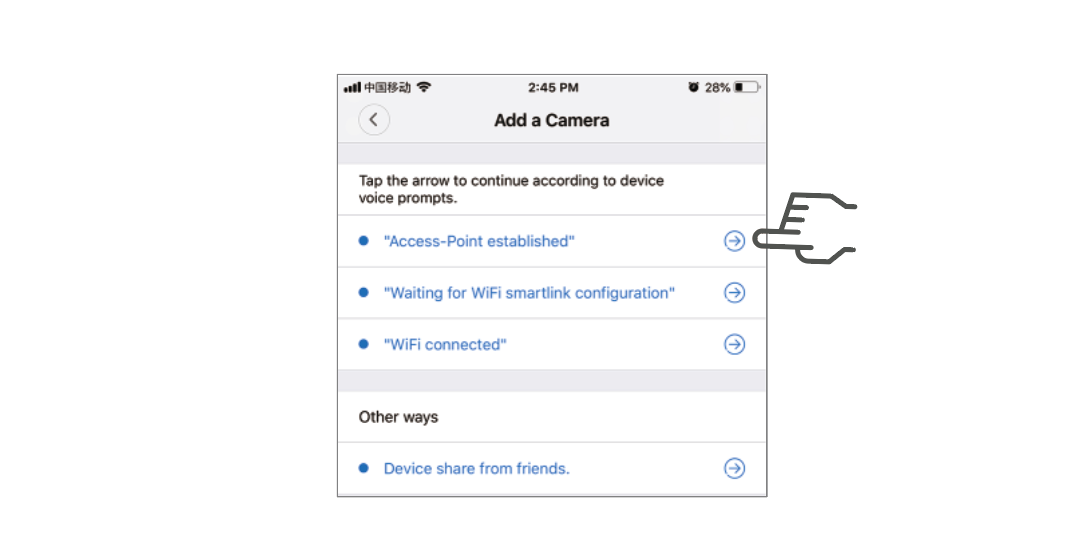
3. If you hear the camera voice prompt”Access-Point established” choose method A or B to configure the camera.
4. If you hear the camera voice prompt“Waitingfor WiFi smartlink configuration”, choose method C to configure the camera.
A.AP quick configuration
Android:
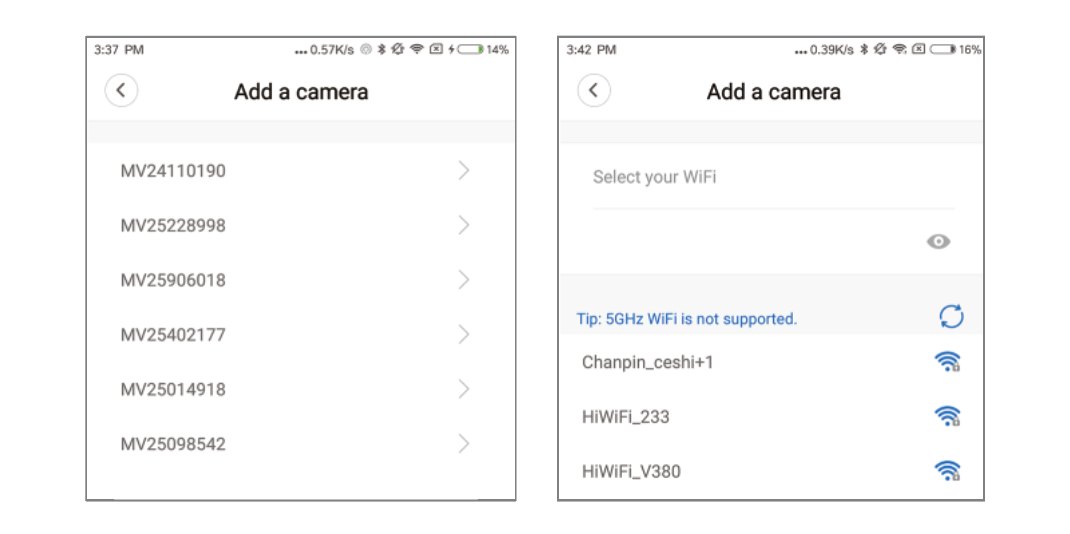
Tap “Access-Point established”, MV+ID will be shown, tap it to proceed.
Choose your Wi-Fi network, enter the password, tap “Confirm”, and the camera will start connecting Wi-Fi.
Once you hear the camera voice prompt “WiFi connected”, it will be shown on device list.
The last step for setting up your camera is to set a password for the camera.
iOS:
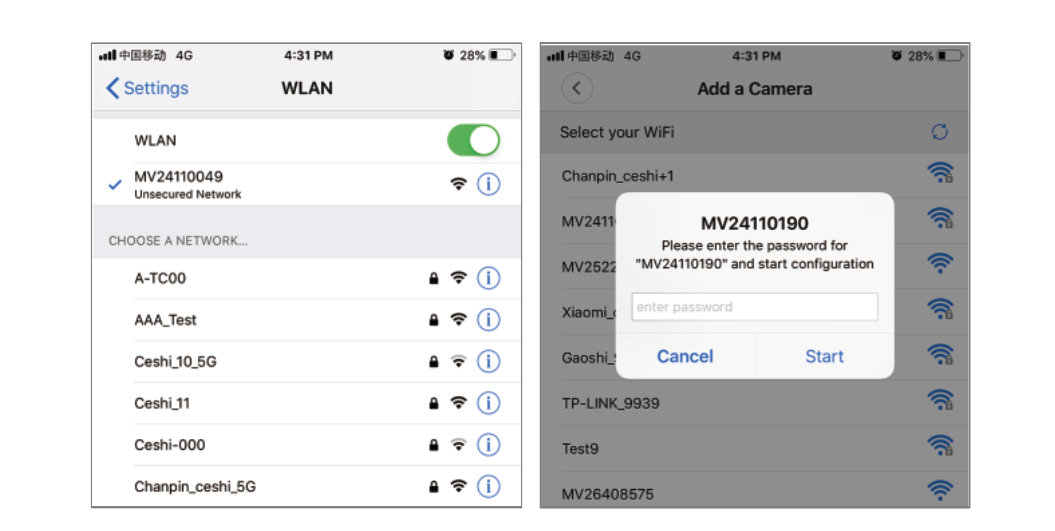
Tap “Access-Point established”, go to your Phone settings, tap “Wi-Fi” and connect “MV+ID”.
Wait for the status bar to display “wifi” icon, and then return to the App, tap “Next”.
Choose your Wi-Fi network, enter the password, tap “Confirm”, and the camera will start connecting Wi-Fi.
Once you hear the camera voice prompt “WiFi connected”, it will be shown on device list.
The last step for setting up your camera is to set a password for the camera.
B.AP Hot spot configuration
Go to your phone settings, tap “Wi-Fi” and connect “MV+ID”.
Wait for the status bar to display “wifi” icon, and then return to the App, pull down the device list, the device will be shown on the list.
You are now able to view live stream on LAN, but in order to achieve remote view, you need to proceed the following steps:
Tap“setttings”—“network”—“change to wi-fi station mode”, then choose your Wi-Fi network, enter the password, tap “confirm”, and the camera will start connecting Wi-Fi.
Once you hear the camera voice prompt “WiFi connected”, the camera is ready to use.
C.wi-fi smart link configuration
Tap “Waiting for WiFi smartlink configuration”, enter Wi-Fi password, you can also enter camera ID, and then tap “Next”.
Once you hear the camera voice prompt “WiFi connected”, it will be shown on device list.
The last step for setting up your camera is to set a password for the camera.
https://v380.org/