Prepare the V380 Pro WiFi camera before adding it to a wireless network. The camera's startup voice prompt is important because different camera versions can begin in different configuration modes.
Before You Start
[checklist] * Camera is connected to power * Camera has finished its startup sequence * Phone is connected to the Wi-Fi network you want the camera to use * A 2.4 GHz Wi-Fi network is available * Wi-Fi password is ready * Camera is reasonably close to the router during configuration * You can hear the camera's voice prompts [/checklist] [note] V380 camera versions can use different startup and configuration flows. Follow the actual voice prompt from your camera rather than assuming that every model begins in the same mode. [/note]Wi-Fi Preparation
Current V380 setup guidance indicates that compatible Wi-Fi cameras use a 2.4 GHz wireless network for configuration. Prepare the network before starting so the camera can receive the correct Wi-Fi information.
[reference] Title: Wi-Fi Band Text: Prepare a 2.4 GHz Wi-Fi network for the camera. Title: Wi-Fi Name Text: Keep the network visible while performing the initial configuration. Title: Wi-Fi Password Text: Have the correct password ready before beginning the connection flow. Title: Router Distance Text: Keeping the camera near the router during initial setup can help maintain a stable connection. [/reference] [warning] Do not select a 5 GHz-only network for the initial V380 Pro WiFi configuration. Network support can vary by camera version, so use the network type supported by the camera. [/warning]Check the Reset Button
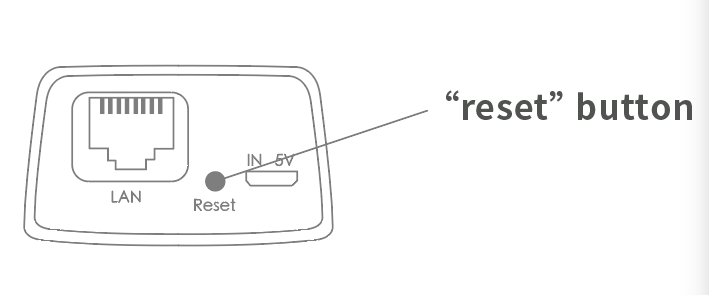
The reset control is used to return the camera to a fresh configuration state when needed. Its physical location may differ between V380 camera designs.
[note] The reset button position shown is for reference only. The actual position can vary depending on the V380 Pro WiFi camera in use. [/note]When a Reset Is Appropriate
A reset can be useful when preparing a previously configured camera for a new network or when you specifically need to start the configuration again. After a reset, previously stored network configuration is cleared and the camera needs to be configured again.
[warning] Resetting is more than a normal restart. It can clear stored Wi-Fi and other device settings, so use it when a fresh configuration is actually needed. [/warning] [step] 1. Power on the V380 Pro WiFi camera and allow it to finish starting. 2. If a fresh configuration is required, locate the camera's reset control. 3. Press and hold the reset control until the camera confirms the reset through its voice prompt. 4. Allow the camera to enter its waiting configuration state. 5. Listen to the next voice prompt before selecting a Wi-Fi setup method. [/step]Identify the Configuration Mode
After startup or reset, listen carefully to the camera. The spoken status tells you which configuration path is currently available.
[compare] Waiting for WiFi smart link configuration | The camera is ready for WiFi Smart Link configuration. Access point established | The camera has created an access point and is ready for AP-based configuration. [/compare]WiFi Smart Link
If you hear “waiting for WiFi smart link configuration,” continue with the WiFi Smart Link option in the setup flow. This method passes the selected wireless network information to the camera.
AP Quick Configuration
If you hear “access point established,” continue with the AP configuration method. In this state, the camera creates its own temporary wireless access point so the setup process can communicate with it.
[tip] Do not choose the setup method only from memory. Listen to the current camera prompt first, because the available configuration state can differ between V380 camera versions. [/tip]AP Hotspot Check
When the camera is in AP mode, a temporary camera hotspot may become visible in the phone's Wi-Fi list. Depending on the camera version, the hotspot identifier can use a device-specific prefix and ID.
[reference] Title: Camera Hotspot Text: A temporary Wi-Fi signal created by the camera during AP configuration. Title: Device ID Text: Some V380 setup flows display a camera identifier together with the temporary hotspot. Title: Temporary Connection Text: The camera hotspot is used during configuration and should not be confused with the home router's normal Wi-Fi network. [/reference]Fresh Setup Flow
[step] 1. Connect the camera to power. 2. Wait for the startup voice prompts to finish. 3. Prepare the 2.4 GHz Wi-Fi network and its password. 4. Reset the camera only if a fresh configuration state is needed. 5. Wait for the camera to announce its current configuration mode. 6. Choose WiFi Smart Link when the camera announces that it is waiting for WiFi smart link configuration. 7. Choose AP-based configuration when the camera announces that the access point is established. 8. Follow the in-app configuration flow for the mode announced by the camera. 9. Wait for the camera's connection confirmation before considering the network setup complete. [/step]Voice Prompts to Watch For
The exact wording can vary between camera versions, but these status messages help identify where the camera is in the setup process.
[reference] Title: Startup Complete Text: The camera has finished starting and can proceed toward configuration. Title: Waiting for WiFi Smart Link Text: Use the WiFi Smart Link configuration path. Title: Access Point Established Text: Use the AP-based configuration path. Title: WiFi Connecting Text: The camera is attempting to join the selected wireless network. Title: WiFi Connected Text: The camera has completed the Wi-Fi connection stage. [/reference] [note] Some newer or different V380 camera versions may use slightly different voice prompts or offer additional configuration methods. The prompt spoken by the camera and the options shown in the setup app should take priority. [/note]