
If your camera is already powered on and connected to a network, you can add it to the V380 Pro app on your phone in two main ways. The first method is to manually add the device by entering the device ID and password. The second method is to let the app automatically search for the camera on the same local WiFi network.
This guide explains both methods in detail, including what to check before adding the device, how to use the Device List page, how to add a camera manually, how to detect a camera through the local area network, what to do if the camera does not appear, and how to handle the first-time password.
These steps are useful when the camera has already completed WiFi setup and is connected to your router. If your camera has not yet been connected to WiFi, complete the camera network configuration first before using this guide.
What Does “Networked Device” Mean in V380 Pro?

A networked device means the camera is already connected to a WiFi router or internet network. The device is no longer only in setup mode. It has already joined a network and can be added to the V380 Pro app for viewing and management.
When a V380 Pro camera is networked, the app can access it through the device ID, local network discovery, or cloud connection depending on your camera model and network status. Once added, the camera will appear in your device list so you can open live view, adjust settings, check recordings, manage alarms, and change the password.
Before You Begin

Before adding a networked camera to your phone, check the following:
- The camera is powered on.
- The camera is already connected to WiFi or a network cable, depending on model.
- Your phone has the V380 Pro app installed.
- Your phone has internet access.
- You know the device ID if using manual add.
- You know the device password if the camera already has one.
- Your phone and camera are connected to the same WiFi network if using LAN search.
- The camera is close enough to the router for a stable connection.
If the camera was recently reset, it may take a short time to reconnect to the router. Wait until the camera finishes startup before trying to add it in the app.
Install and Open the V380 Pro App

Make sure you are using the correct app, V380 Pro. If you have not installed it yet, download it from the Google Play Store for Android or the App Store for iPhone.
After installing the app, open it and log in or continue with the available account option. Some app versions may allow local use, while others may require account login for cloud access, sharing, notifications, or remote viewing.
Allow the app permissions when requested. The V380 Pro app may need permissions for local network access, WiFi information, notifications, storage, microphone, speaker, or location depending on your phone system and app version.
Two Ways to Add a Networked Device
Once the camera is already connected to the network, you can add it to your phone using one of the following methods:
- Method 1: Manually add the device using the device ID and password.
- Method 2: Add the device through local area network detection.
Manual add is useful when you know the device ID or you are adding the camera from a different network. LAN detection is useful when the camera and phone are on the same router and you want the app to find the camera automatically.
Method 1: Manually Add the Device
This method is useful if you already know the device ID and want to add the camera directly through the app. It is also helpful when the camera is not automatically detected on the local network.
The device ID is usually printed on a sticker on the camera body, camera base, product label, QR code label, or packaging. It may also appear in the device information page if the camera was added to another phone before.
Steps to Manually Add a Networked Device
- Open the V380 Pro app on your phone.
- Go to the [Device List] interface. This is the main screen where added cameras are displayed.
- Tap the [+] icon in the upper-right corner of the screen.
- Select [WiFi connection completed] if the camera is already connected to WiFi.
- If your app version shows a different menu, choose [Other ways] or a similar option that allows manual device adding.
- Enter the correct device ID in the device ID field.
- Enter the correct device password in the password field if the camera already has a password.
- Tap [OK Add] to confirm.
- Wait for the app to verify and add the device.
- Once the device is successfully added, the system will return you to the Device List page.
- The newly added device will usually appear at the top of the device list for quick access.
After the camera appears in the device list, tap the device preview or camera name to open the live view. If the app asks for an access password, enter the camera password.
When Should You Use Manual Add?
Manual add is recommended in these situations:
- You know the camera device ID.
- The camera is already online but does not appear in local search.
- You are adding the camera from another location.
- You want to add a camera that is connected to a different network.
- The app cannot automatically detect the device.
- You are adding the camera to a second phone.
Tips for Entering the Device ID
When entering the device ID, type it carefully. Device IDs may contain numbers, letters, or a long serial code. A single incorrect character can prevent the camera from being added.
If the label has a QR code, the app may allow scanning instead of manual typing. Scanning the QR code can reduce typing mistakes.
If the app says the device does not exist, the device ID may be incorrect, the camera may be offline, or the camera may not be connected to the internet.
Method 2: Add Through Local Area Network (LAN)
This method works only when your mobile phone and the camera are connected to the same WiFi network. It is often the fastest and easiest way to find and add a nearby device automatically.
LAN detection means the V380 Pro app searches your local network for compatible cameras. If the camera is online and connected to the same router as your phone, the app can usually discover it automatically.
Steps to Add the Device Through LAN
- Make sure your phone is connected to the same WiFi router as the camera.
- Open the V380 Pro app.
- Go to the Device List screen.
- Pull down on the screen to refresh the device list.
- The app will automatically search for devices available on the same local network.
- When the camera is detected, it will appear in the list, usually at the first position.
- Tap the detected device to continue setup.
- Enter the correct access password when prompted.
- Confirm the addition and wait for the device to appear in your device list.
If the camera is detected but cannot be opened, the access password may be wrong, the device may need to be initialized, or the app may need to refresh the connection.
When Should You Use LAN Detection?
LAN detection is recommended when:
- You are physically near the camera.
- Your phone and camera are connected to the same router.
- You do not want to manually type the device ID.
- The camera has already been connected to WiFi successfully.
- You are setting up the camera for the first time after WiFi configuration.
Important Note About the First-Time Password
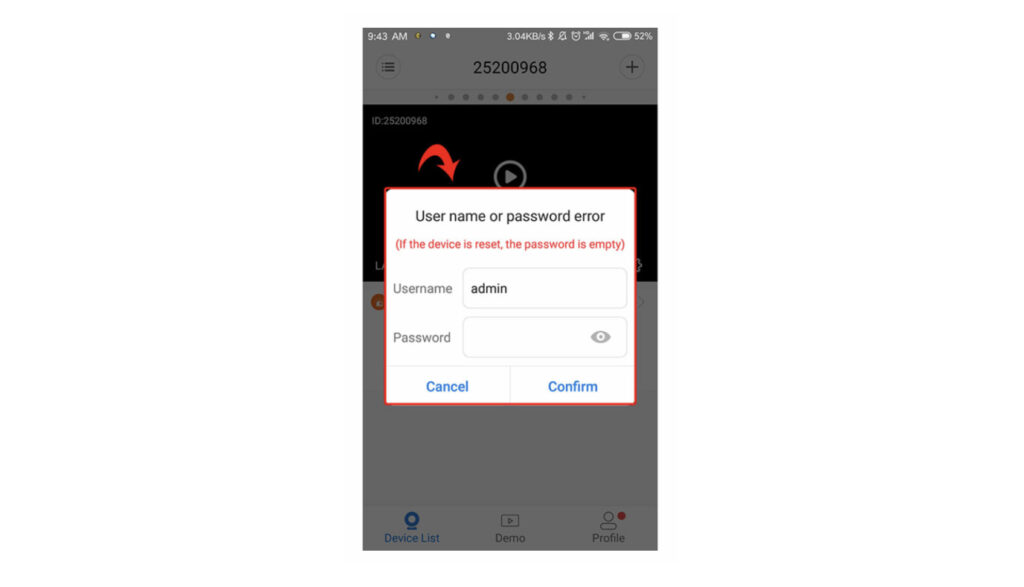
For a newly networked device, the default device password may be empty the first time it is added. This means you may be able to add or preview the camera without entering a password.
However, for security reasons, you should set a new password as soon as possible after the device is successfully connected. Leaving the password empty can make the camera less secure, especially if remote access is enabled.
Choose a password that is easy for you to remember but difficult for others to guess. Avoid simple passwords such as:
- 123456
- 000000
- admin
- password
- Your phone number
- Your birthday
A stronger password should include a combination of letters, numbers, and symbols.
How to Set or Change the Device Password
After adding the device successfully, open the camera from the device list and go to the settings page. Depending on your app version, the password option may be called Device Password, Security Password, Access Password, or Modify Password.
Set a new password and save the change. After changing the password, you may need to enter the new password again when opening the camera from another phone.
If you forget the device password, you may need to reset the camera and configure it again.
Device List Page Explained
The Device List page is the main screen in V380 Pro where all added cameras are shown. After you add a networked device, it will appear here.
From the Device List page, you can usually:
- Open live preview.
- Check whether the camera is online or offline.
- Add a new device.
- Refresh the device list.
- Enter device settings.
- Rename the camera.
- Delete the camera from the app.
- Access playback or recordings if supported.
If your newly added device does not appear, refresh the list, restart the app, or check whether the camera is online.
What to Do After the Device Is Added
After the device has been added successfully, you can open it from the device list to view the live preview, adjust settings, and manage security options such as updating the device password.
You should also check important settings such as:
- Device name
- Time zone
- Date and time
- Storage card status
- Recording settings
- Motion detection settings
- Alarm notifications
- Image quality
- Night vision mode
- Password and security settings
Live Preview After Adding the Camera
To view the live feed, tap the camera from the device list. The app will open the preview screen. Depending on the camera model, you may be able to use features such as two-way audio, snapshot, manual recording, full-screen viewing, pan and tilt control, night vision, and playback.
If the preview does not open, check the camera status. If it shows offline, the camera may not be connected to the network. If it asks for a password, enter the correct access password.
Troubleshooting Tips
If you have trouble adding the device, try the following:
- Confirm that the camera is powered on and connected to WiFi.
- Make sure your phone has a stable internet connection.
- Double-check the device ID and password when using manual add.
- Ensure both the phone and camera are on the same network for LAN detection.
- Refresh the device list or restart the app if the device does not appear.
- Set or reset the device password if this is the first time the camera has been connected.
- Move the camera closer to the router if the WiFi signal is weak.
- Restart the camera and wait for it to reconnect.
- Restart your router if network devices are not appearing.
- Check whether your phone is connected to mobile data instead of WiFi when using LAN detection.
If Manual Add Does Not Work
If the device cannot be added manually, check the device ID first. Make sure there are no missing digits, extra spaces, or incorrect characters. If possible, scan the QR code instead of typing manually.
Also confirm that the camera is online. If the camera is powered off, disconnected from WiFi, or too far from the router, the app may not be able to verify it.
If the password is wrong, the device may be added but not accessible. Try the correct access password or reset the camera if the password is forgotten.
If LAN Search Does Not Find the Camera
If the app cannot detect the device on the LAN, verify that both the phone and camera are connected to the same router and WiFi band. In some cases, restarting the app or refreshing the device list again may help.
LAN search may fail if:
- Your phone is using mobile data instead of WiFi.
- The phone and camera are on different routers.
- The phone is on a guest WiFi network.
- The router blocks local device discovery.
- The camera is offline.
- The WiFi signal is weak.
- The app does not have local network permission.
- The camera has not fully restarted after WiFi setup.
If LAN search still does not work, use manual add with the device ID.
Common Error Situations
The Device Shows Offline
If the device appears in the list but shows offline, the camera may not be connected to the internet. Check the power supply, WiFi connection, router status, and camera distance from the router.
The Password Is Incorrect
If the app says the password is incorrect, enter the access password again. If this is a new device, the password may be empty at first. If someone already set a password and you do not know it, reset the camera.
The Device ID Is Not Recognized
Make sure the ID was entered correctly. Check the label again and avoid confusing similar characters such as 0 and O, 1 and I, or 5 and S.
The Camera Was Added but Cannot Preview
This may happen if the network is slow, the password is wrong, or the camera is not fully online. Refresh the device list and try again.
The App Keeps Searching but Finds Nothing
Make sure your phone is connected to the same WiFi as the camera. Pull down to refresh again. If the device still does not appear, close and reopen the app.
Security Recommendations
After adding the camera, secure it immediately. Network cameras can be accessed remotely, so password protection is important.
- Set a strong device password after the first connection.
- Do not leave the default password empty.
- Do not share the device ID publicly.
- Only share access with trusted users.
- Update the app when new versions are available.
- Use a secure WiFi password on your router.
- Remove old devices from the app if you no longer use them.
Best Network Setup for V380 Pro Cameras
For the best performance, place the camera where the WiFi signal is strong. If the camera is too far from the router, it may show offline, disconnect, or load video slowly.
A good network setup should include:
- A stable router.
- Strong WiFi signal where the camera is installed.
- A secure WiFi password.
- No guest network isolation if using LAN detection.
- Enough internet upload speed for remote viewing.
- A stable power supply for the camera.
If remote viewing is slow, reduce the video quality or move the camera closer to the router.
Adding the Same Camera to Another Phone
You can usually add the same networked camera to another phone by using the same device ID and device password. Install V380 Pro on the second phone, open the device list, tap the plus icon, and add the device manually.
If the camera is on the same local WiFi, the second phone may also detect it through LAN search. The access password will still be required if one has been set.
For better security, only add the camera to phones used by trusted family members or authorized users.
Difference Between Adding a Device and Configuring WiFi
Adding a device and configuring WiFi are not the same thing. Configuring WiFi means connecting the camera to your router. Adding a device means registering or displaying that already networked camera inside your V380 Pro app.
If the camera is not yet connected to WiFi, adding it by ID may not work because the camera is offline. First complete WiFi setup, then add the device to your phone.
Quick Summary: Manual Add
- Open V380 Pro.
- Go to Device List.
- Tap the + icon.
- Select WiFi connection completed or Other ways.
- Enter the device ID.
- Enter the device password if required.
- Tap OK Add.
- Return to the device list.
- Open the camera preview.
Quick Summary: LAN Add
- Connect your phone to the same WiFi as the camera.
- Open V380 Pro.
- Go to the Device List.
- Pull down to refresh.
- Wait for the app to detect the camera.
- Tap the detected device.
- Enter the access password if prompted.
- Add the camera to the device list.
- Open live view.
Final Notes
After the device has been added successfully, you can open it from the device list to view the live preview, adjust settings, and manage security options such as updating the device password.
If the camera does not appear immediately, check that the ID and password were entered correctly. Also make sure the camera is online and connected to the internet.
If the app cannot detect the device on the local network, confirm that your phone and camera are connected to the same WiFi router. Refresh the device list, restart the app, or use manual add with the device ID.
For security, always set a strong device password after adding a newly networked camera. Do not leave the password blank, and do not share your device ID or access password with unknown users.